Placement
其他語言版本 English
What is Placement?
"Placement" is the profile that stores the employee's job-related information such as the job position, join date, salary, leave balance and etc.

- Active means the existing placements
- Upcoming means the coming placements that the join date is after "today"
- Terminated means the terminated placement
All would see all the Placement in the system no matter the Placement status.
What can be defined in Placement?
The Placement profile has different sections and you can fill in the employee's job-related information on this page.
- Placement Number normally would be the staff number(if any). You can change it by clicking on the Placement
profile->More->Change Placement Number. The system would auto-generate a Placement Number if you leave it blank. - By clicking on the Placement profile->More->Reset Placement Password you can change the payslip/ESS login password. A notification email with a randomly generated password will be sent to the work email of the placement.
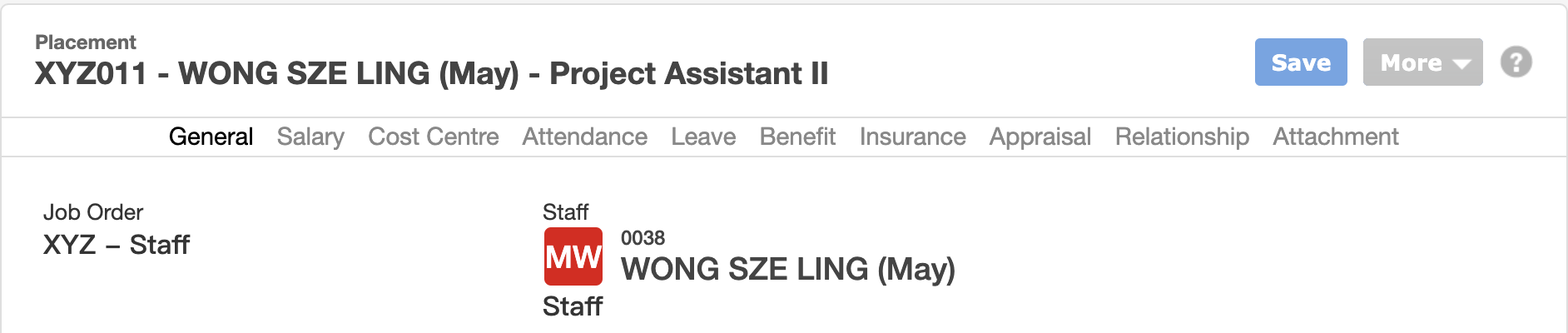
1. General
General defines the general job-related information of the employees, such as the organization/department the staff under, position, start date, work email and etc. Any movement or job-related information updated, e.g Promotion history, and changing department can be recorded here.
- The Job Order CANNOT be changed once the placement is created (Job Order defines the organization you can select)
- Work email would be one of the ESS login ID
- Group Join Date is for staff who have internal transfer before
- Placement Type and Internal Grade are optional fields. Please go to Master Data->Placement Type / Internal Grade to set up the types/grades first if you need to record this information
- Rank is an optional field on each Movement. It is only needed if your company pays on a Pay Scale
Rank on a Movement Optional
If your company pays on a pay scale, each Movement can point at a Rank — the named range of points that the job may be paid on, for example Clerical Officer, points 3 to 15.
- Pick the Rank from the dropdown when you add or edit a Movement. Entries read as scale code - rank name
- Choosing a Rank fills the Position box with the rank's name. You can edit the Position afterwards if you want different wording
- Only ranks belonging to active pay scales are offered. A Movement that already holds a rank keeps it even if its scale is later made inactive
- A new Movement starts with the previous Movement's rank already selected
- Leaving Rank blank is fine — it simply means no pay scale applies over that period
Because the Rank sits on the Movement, it is effective-dated like the rest of the job. The Rank cell on the Placement page shows the rank in force today, and its menu lists every Movement with its rank, so the history reads at a glance.
2. Salary
Only Applicable if you use our Payroll Module
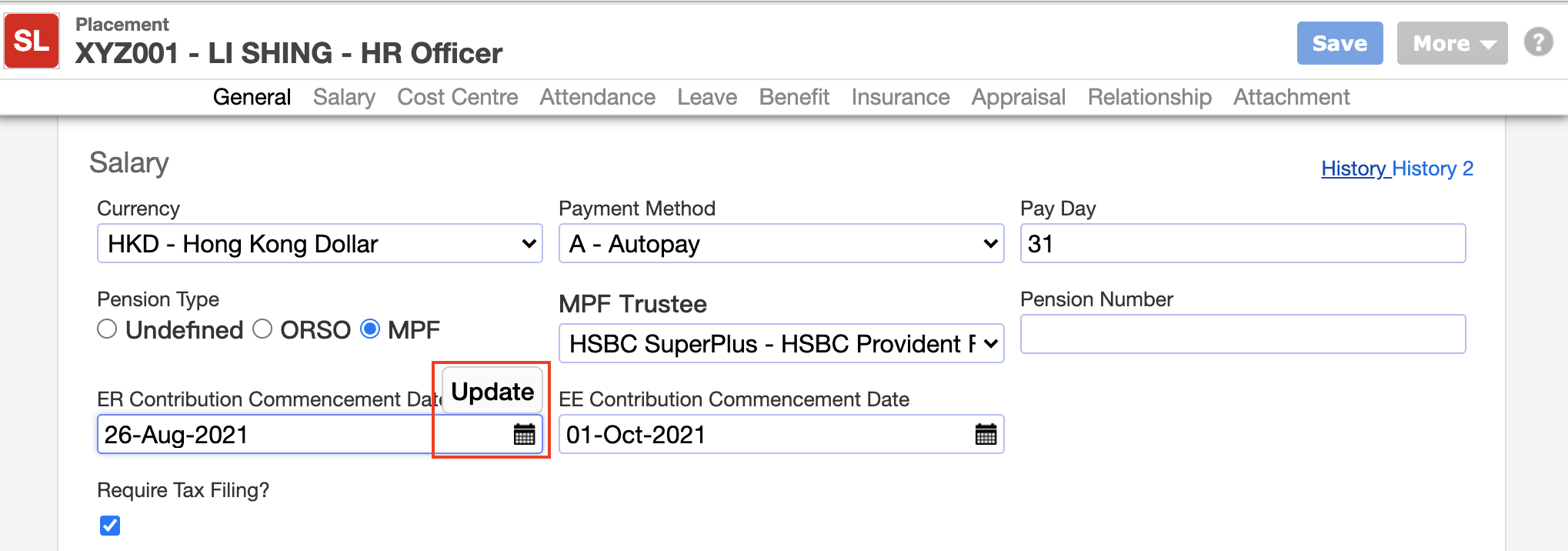
Salary defines the information related to payroll, e.g Basic Salary amount, MPF Trustee, MPF employer and employee 1st contribution date, Payment Method, Require Tax Filing or not and etc.
- Click "History" and you can check the employee's payroll history
- If the Payment method = Autopay, please input the Bank Account in the Applicant profile. Otherwise, you cannot add the staff to the payroll batch
- The ER and EE Contribution Commencement Date would be calculated by the system automatically based on the staff Start Date and Birth Date. Please let us know if you have any problem with the date.
- DO NOT change the ER and EE Contribution Commencement Date, Except you have updated the Join date after the placement is created. You can click "Update" when you point to the calendar and the system would calculate the EE & ER 1st contribution date again.
- Input the Pay rate of the pay type if the amount is fixed to be paid monthly, e.g Basic Salary, Attendance Allowance with the correct effective date
Paying a Pay Item from a Pay Scale Optional
Instead of typing an amount, a Pay Item can take its rate from a point on a Pay Scale. This only applies if your company pays on a published or negotiated scale.
- Tick On Pay Scale on the Pay Item. A line appears naming the scale and rank that apply on that date, with the range, e.g MPS - Clerical Officer (points 3 to 15)
- Choose the Point. The dropdown only offers points inside the rank's range
- Pay Rate becomes read-only and fills with the rate read from the scale
- Changing the Effective Date or the Point refreshes the rate, because a different date can fall under a different Movement, a different rank, or a different revision of the scale
- Untick On Pay Scale to go back to typing an amount
In the Salary list, a Pay Item on a scale carries a grey line under the amount reading scale code - rank name / point. A red No Rate badge means the scale cannot price it — hover the badge for the reason.
Remember the scale is found through the Rank on the Movement in force at the Pay Item's effective date, not at the payroll date. So:
- Set the Rank on the Movement before adding the Pay Item
- A promotion needs two records: a Movement with the new Rank, and a Pay Item at the new Point, both effective from the promotion date. Adding the Movement alone does not change the staff member's pay
- An increment is a new Pay Item at a higher Point. Progression is never automatic
Saves are refused when the Movement at that date has no Rank, when the Point falls outside the rank's range, when the scale's currency differs from the placement's, or when the scale has no rate on or before that date. The message says which. Full walkthrough and a list of every message: Set up a Pay Scale and pay staff on it.
3. Cost Centre Optional
Cost Centre defines the cost allocation of salary to staff. You need to go to Payroll->Cost Centre to create the cost centre first.
- Please make sure the sum of all allocations is 100%
4. Attendance
Attendance defines the attendance related information, e.g Roster and Attendance Number to staff
- Attendance Number means the staff attendance number in your company's card/attendance system. Please fill in the field if the Attendance Number is not the same as the Placement Number.
- Roster means the working schedule of staff. For assigning the Roster, you can
- Select the existing Roster, or
- Create a new roster by copying the existing Roster setting, or
- Go to Attendance->Roster to set up the roster first
- Details can take a look at this page: Roster

5. Leave
Only Applicable if you use our Leave Module
Leave defines the leave entitlement and shows the leave balance of staff. When staff has any entitlement change, you can update here. Please check the leave balance after assigning the Leave Entitlement.
- Please go to Attendance->Leave Entitlement to create the leave entitlement first. Details can take a look at the page Leave Entitlement
- If you cannot see the leave type you want, please take a look at this page: Create a new Leave Type
- "Effective Date" normally would be the same as the join date of the staff for the initial entitlement
- "Starting at period" would be 0 when counting the entitled days according to the staff service year. Otherwise, please specify which period to start with
6. Benefit
Only Applicable if you have purchase our Expense Module
Benefit defines the benefit entitlement to staff.
- Please go to Expense->Benefit Entitlement to create the benefit entitlement first.
7. Insurance Optional
Insurance defines the Insurance Plan that the staff uses.
- Please go to Master Data->Insurance Plan to create the plan first.
8. Appraisal
Only Applicable if you have purchase our Appraisal Module
Appraisal defines whether the staff need to do the appraisal. If yes, please define the Competency Set of the staff would be used in the appraisal.
- Staff cannot be added to the Appraisal batch if you have not selected the Competency Set
- You can check the employee's appraisal history by clicking "History"
9. Relationship
Only Applicable if you have purchase our ESS
Relationship defines the Supervisor, e.g Leave Approver, Roster Manager, and the Subordinate of the staff.
- Details can look this page: Setup the Relationship/Supervisors for Employees
10. Attachment
You can upload any document or picture related to this placement