Check Compensation Leave /OT Leave Balance
其他語言版本 English
Why Check Compensation Leave(CL)/OT Leave Balance?
Sometimes, staff work overtime and request for Compensation Leave(CL), the leave added/entitled would be auto-forfeited after the specific time if the staff does not take the leave.
You need to check the leave balance(if the leave is taken or forfeited) carefully to avoid staff being overtaken or leave being forfeited wrongly and use much time to "pair up" the leave records.
How does CL/OT Leave Adjustment work?
A pair of Leave Adjustments would be created, which the one representing expiry in negative, when the Leave Application is approved or the new Leave Adjustment is created.
The negative balance would be changed according to the number of days of leave taken automatically if the staff took leave before the leave was forfeited, e.g. take 1 hour leave, -2 -> -1; take 2 hours leave, -2 -> 0.

How to Check CL/OT Leave Balance?
- Go to Associate -> Placement -> Open the staff Placement profile
- Go to Leave part -> Click the Leave Type
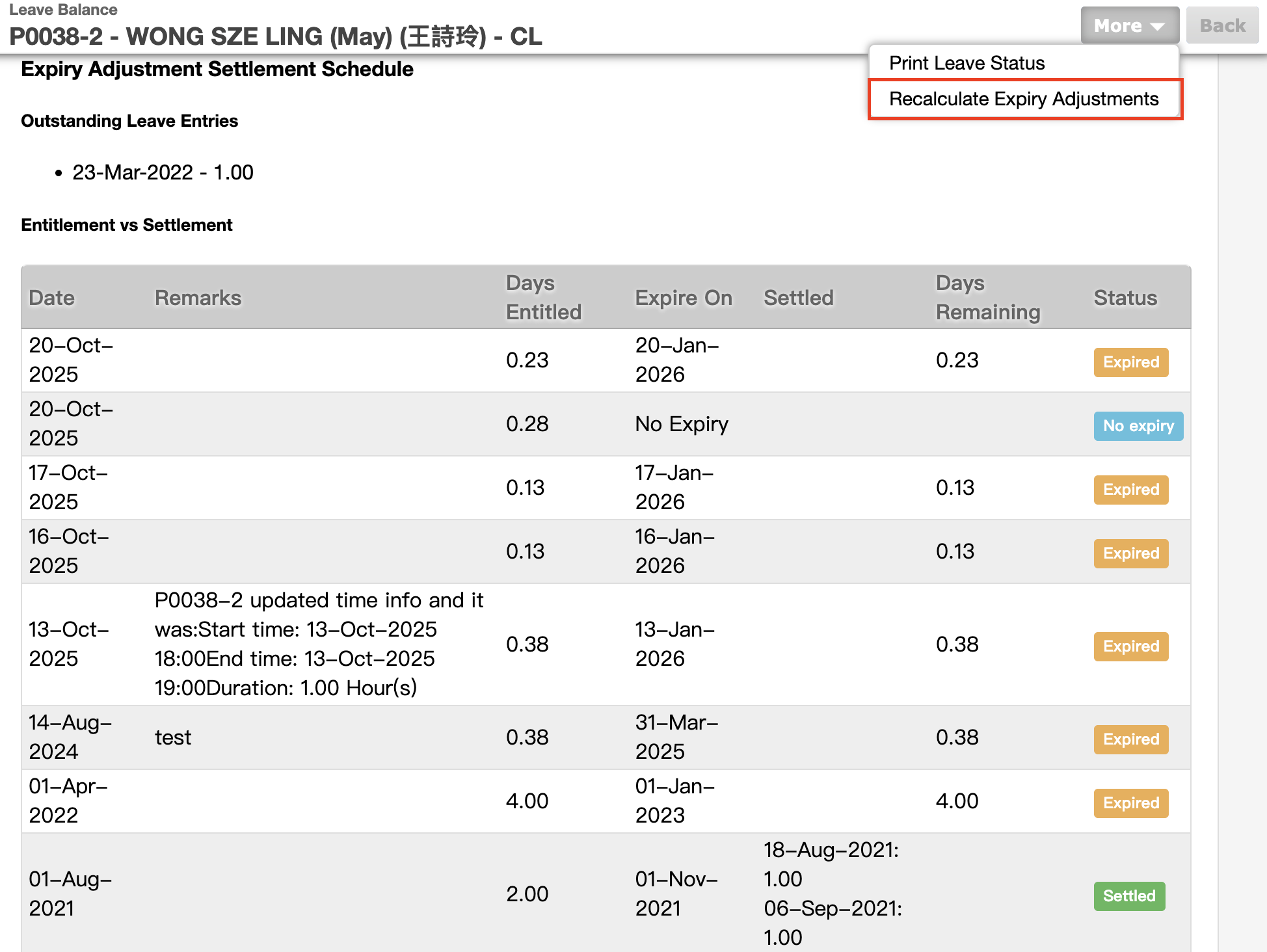
- Click Expiry Adjustment Settlement Schedule
- Outstanding Leave Entries: Leave record(s) that cannot match the Adjustment record(s), i.e. staff take leave more than his/her balance or any missing Adjustment not yet entered
- Status:
- Settled: the granted leave adjustment fully used
- Open: the granted leave adjustment has an expiry date but still has a balance to use
- No expiry: the granted leave adjustment has NO expiry date, and is available to use
- Expiried: Unused leave adjustment is expired and forfeited
Point to Note
Sometimes, you may see the ! besides the records, it means the calculation of the leave record is wrong. (You can point to the ! to check the correct number.)
- To correct the records, please go to More -> Recalculate Expiry Adjustments